
The CW tab, part by part
The CW keyer lives on the CW tab of the RemoteTx client. This page walks through the screen from top to bottom. The numbers match the screenshot below.
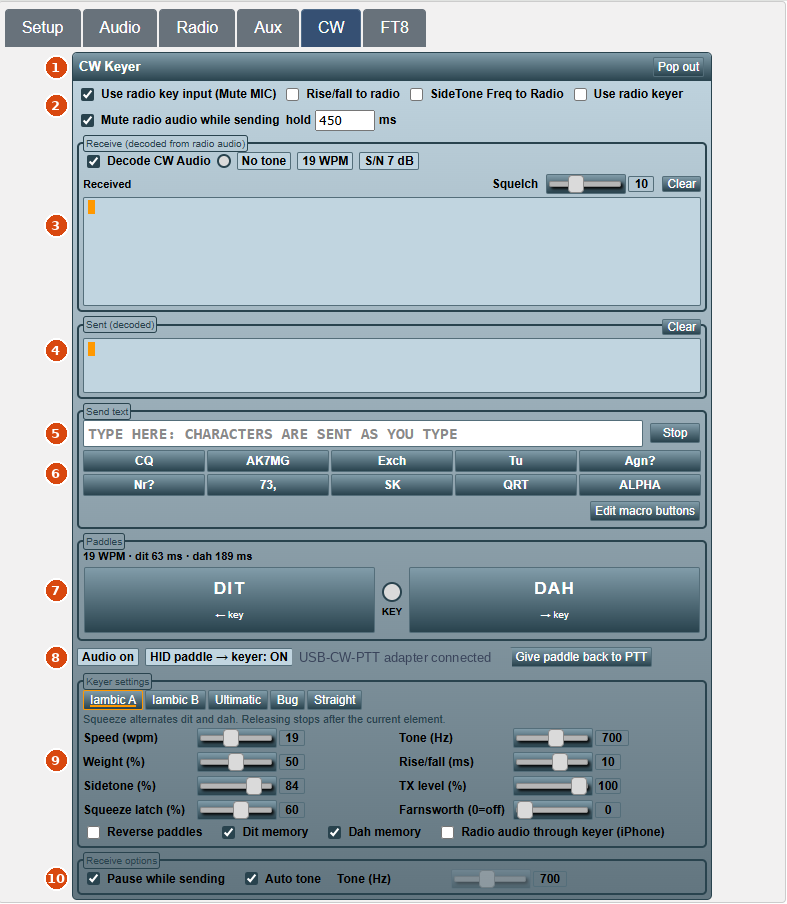
| # | Area | What it's for |
|---|---|---|
| 1 | Title bar | Pop the keyer out so you can use it next to the Radio tab |
| 2 | Transmit options | How the keyer reaches the radio, and echo muting |
| 3 | Receive | Decode CW from the radio audio |
| 4 | Sent (decoded) | What you sent, decoded back to text |
| 5 | Send text | Type to send |
| 6 | Macro buttons | Ten stored messages |
| 7 | Paddles | On-screen paddles, KEY lamp, speed readout |
| 8 | Status row | Audio state and the HID paddle connection |
| 9 | Keyer settings | Mode, speed, tone, weight and the rest |
| 10 | Receive options | How the receive decoder behaves |
1. Title bar and pop-out#
| Control | What it does |
|---|---|
| Pop out | Moves the keyer out of the tab, either into its own window or floating over the page. Use this to keep the paddles and decoders in view while you tune on the Radio tab. |
| drag here to move | When floating, drag the title bar to move the panel. Its position is remembered. |
| Dock / Bring it back here | Returns the keyer to the CW tab. |
When popped out, the Paddles box folds down to its title to save height. Click ▸ Paddles to open it; the client remembers whether you left it open.
2. Transmit options#
These checkboxes decide how your keying gets to the radio. Hover over any of them in the client for a reminder.
For normal paddle CW, tick only the first option, Use radio key input (Mute MIC), and leave all the others off. In general there's no reason to turn the others on.
| Option | Default | What it does |
|---|---|---|
| Use radio key input (Mute MIC) | Off | Sends the keyer's tone to the station, where the USB-CW-VOX adapter keys the radio's KEY jack. While ticked, your microphone is left out of the audio to the radio, so room noise can't trigger the VOX. Turns Use radio keyer off. This is the main paddle-CW setting. |
| Rise/fall to radio | Off | Off: the tone to the radio switches on and off with 0 ms edges, which the VOX detector needs. On: the tone uses the Rise/fall slider, for MCW over SSB. Your own sidetone is always shaped either way. |
| SideTone Freq to Radio | Off | Off: the radio always gets a 1000 Hz tone, whatever the Tone slider says. On: the radio gets the same pitch you hear (for MCW in SSB). |
| Use radio keyer | Off | Everything that appears in Sent (decoded) is also typed into the radio page's CW Keyer box, so the radio's own keyer sends it. Works with the IC-7300, IC-7610, IC-7100, Elecraft and Icom scope pages. Turns Use radio key input off. |
| Mute radio audio while sending | Off | Silences the radio audio you hear from your first key-down until the hold time after your last key-up, so the radio's CW monitor doesn't come back as a delayed echo. The decoders still get the audio. |
| hold … ms | 700 ms | Shown when muting is on. Raise it if you still hear the tail of your sending; lower it to hear the other station sooner. |
Leave TX level (in Keyer settings) at 100 % and set the tone level sent to the station with the TX Mod slider on the Audio tab (see Levels). The radio must actually be in transmit (by break-in from the KEY jack, or PTT/VOX for MCW) to put anything on the air.
3. Receive decoder#
The receive decoder copies CW from the radio's audio as it arrives in your browser.
| Item | What it does |
|---|---|
| Decode CW Audio | Turns the decoder on. Until the radio is connected it shows Waiting for radio audio. |
| Lamp (○) | Lights on each received element; changes colour when the decoder has locked onto a tone. |
| Tone … Hz / No tone | The pitch the decoder is following, or No tone when nothing is strong enough. |
| … WPM | Estimated speed of the received signal. |
| S/N … dB | Signal-to-noise of the tone being decoded. |
| Squelch | 6–18 dB. How far above the noise a tone must be to count as key-down. Raise it if noise prints as random letters; lower it for weak signals. 10 dB is generally a good level. |
| Received | The decoded text. Clear empties it. |
| Paused while sending | Appears on the Received line while Pause while sending is holding the decoder (see Receive options). |
The decoder's other options are at the bottom of the tab, in Receive options.
Narrow the radio's CW filter to 250–500 Hz for the best copy. The decoder works on whatever audio the radio sends.
4. Sent (decoded)#
Everything you send, from the paddle, keyboard, text box or macros, is decoded back to text here by the keyer itself. Use it to check your sending: if a character you meant isn't what appears, your timing was off. Clear empties it.
With Use radio keyer ticked, this is also the text that is passed to the radio's own keyer.
5. Send text#
| Item | What it does |
|---|---|
| Text box | Characters are sent as you type. The keyer keeps a buffer, so you can type ahead. |
| Backspace | Removes letters that haven't been sent yet. |
| Enter | Clears the box; the buffer keeps sending. |
| Esc or Stop | Stops sending immediately and clears the buffer. |
| Sending… (touch a paddle to stop) | Shown while the buffer is sending. Touching a paddle also stops the message (break-in); the current element finishes cleanly. |
Prosigns are typed in angle brackets and sent as one character: <AR>, <SK>, <KN>, <BT>, <AS>, <BK>, <HH>, <CT>, <VE>, <SOS>.
6. Macro buttons#
Ten buttons, in two rows of five, send stored messages with one click. Hover over a button to see what it sends. The factory set is:
| Button | Default text |
|---|---|
| CQ | CQ |
| CALL | mycall |
| Exch | 5NN mystate |
| Tu | Tu mycall |
| Agn? | Agn? |
| Nr? | Nr? |
| 73, | 73, |
| SK | SK |
| QRT | qrt |
| BTU | btu |
mycall and mystate (whole words, any case) are replaced with your call sign and state when the macro is sent. The screenshot shows a set that has been edited: the second button is labelled with a call sign and the last one is a custom ALPHA macro.
Edit macro buttons opens the editor:
| Control | What it does |
|---|---|
| Label | Up to 16 characters shown on the button. |
| Text | Up to 200 characters to send. Unsendable characters are flagged in red, and Save is disabled until they're fixed. |
| Default | Puts the factory macros back in the editor (not saved until you click Save). |
| Save / Cancel | Keep or discard your changes. |
| Back up | Downloads your macros (with your call and state) as cw-keyer-macros.json. |
| Restore | Loads macros from a backup file and saves them immediately. |
7. Paddles#
| Item | What it does |
|---|---|
| Readout | Current speed and element lengths, e.g. 19 WPM · dit 63 ms · dah 189 ms. |
| DIT / DAH buttons | On-screen paddles for mouse or touch. Press and hold; squeezing both works on a touch screen. With Reverse paddles on, the labels swap sides. The small ← key / → key under each label is the keyboard key for that paddle. |
| KEY lamp | Lights while the keyer is key-down, exactly in step with the tone. |
| Keyboard | Click inside the tab, then use ← / → or F8 / F9. The arrows key only inside the CW tab (on the Radio tab they tune); F8/F9 also key on the Radio tab when CW is lit. |
8. Status row#
| Item | Meaning |
|---|---|
| Audio on / off | Whether the keyer's sound engine is running. Browsers only allow sound after you click or press a key on the page. If it shows off, click Start audio. |
| HID paddle → keyer: ON/OFF | Whether a USB paddle (the USB-CW-PTT adapter, a CTR2, or an Arduino box) is feeding the keyer. Only shown in Chrome/Edge. |
| Device status | Grey text naming the paddle in use and showing it's connected, or Keyboard: F8 / F9 when no USB paddle is used. |
| Connect HID paddle | Shown when no paddle is connected. Switches to CW mode and opens the device chooser, where you pick RemoteTx PTT-CW. |
| Give paddle back to PTT | Shown when a paddle is connected. Returns the adapter to PTT mode as it was set up before. |
| Red text | An error, e.g. a device that couldn't be opened. |
9. Keyer settings#
Mode#
| Mode | Behaviour |
|---|---|
| Iambic A | Squeeze alternates dit and dah. Releasing stops after the current element. |
| Iambic B | Squeeze alternates dit and dah. Releasing during an element adds one opposite element. (Default.) |
| Ultimatic | On a squeeze, the paddle pressed last wins and repeats. |
| Bug | Dit paddle makes automatic dits. Dah paddle is a manual key. |
| Straight | Either paddle is a straight key. |
The selected mode is outlined, and the line under the buttons describes it. See Iambic behaviour in detail.
Sliders#
Each slider shows its value in the box to its right. Click a slider's label to open a magnified version that's easier to use on a phone; click outside it to close.
| Slider | Range | Default | What it does |
|---|---|---|---|
| Speed (wpm) | 5–40 | 20 | Character speed. Dit = 1200 ÷ WPM ms. |
| Tone (Hz) | 300–1000 | 600 | Pitch of your sidetone (and of the tone to the radio if SideTone Freq to Radio is on). |
| Weight (%) | 25–75 | 50 | Mark/space ratio. Above 50 makes marks heavier. Use it to correct for station-side VOX timing. |
| Rise/fall (ms) | 1–15 | 5 | Edge shaping of the sidetone (and of the radio tone if Rise/fall to radio is on). 4–6 ms is clean and crisp. |
| Sidetone (%) | 0–100 | 40 | Volume of the sidetone in your own speakers only. 0 mutes it. |
| TX level (%) | 0–100 | 100 | Level of the tone sent to the station. Generally leave this at 100 %; set the level with the TX Mod slider on the Audio tab instead (see Levels). |
| Squeeze latch (%) | 0–100 | 50 | How late in an element a paddle held over from before still counts as a squeeze. Lower = more extra elements in Iambic B; higher = fewer. Fresh presses always count. |
| Farnsworth (0=off) | 0–40 | 0 | For typed text and macros: send characters at full speed but space them out to this lower speed. |
Checkboxes#
| Checkbox | Default | What it does |
|---|---|---|
| Reverse paddles | Off | Swap left and right. |
| Dit memory | On | A dit tapped during a dah is remembered and sent next. |
| Dah memory | On | A dah tapped during a dit is remembered and sent next. |
| Radio audio through keyer (iPhone) | On for iPhone/iPad, off elsewhere | Plays the radio audio through the keyer's own sound output. iOS otherwise turns the sidetone down while other audio plays. Not needed on computers. |
All settings are saved in the browser and restored the next time you open the client.
10. Receive options#
Shown while Decode CW Audio is ticked.
| Option | Default | What it does |
|---|---|---|
| Pause while sending | On | Stops decoding while you send, and for 0.2 s after, so your own signal coming back in the radio audio isn't decoded. |
| Auto tone | On | Finds the strongest CW tone by itself. |
| Tone (Hz) | 600 | 300–1200 Hz. The pitch to decode when Auto tone is off (the slider is greyed out while Auto tone is on). Set it by hand when two signals are in the passband. |