
Making QSOs
FT8 QSOs follow a fixed pattern of short messages, one per 15-second period. The FT8 tab works like WSJT-X: double-click to call, and let Auto Seq step through the messages.
Before you start#
- Ensure the radio is connected on the Radio tab, it is in USB mode and you can see signals on the waterfall.
- Your call and grid are set in Settings → Station, and the clock is right (DT values near 0).
- Tx level is set so the radio's power meter just reaches maximum, with little or no ALC. Click Tune and raise Tx level until the power stops rising; past that point the ALC meter starts to climb, so back off until it's green. See Setting the level.
Answering a CQ#
- Watch Band Activity. CQs are green; new marks stations you haven't worked.
- Double-click the CQ. The client fills in DX Call, DX Grid and Report sent, generates the Tx messages, sets your Tx period opposite to theirs, moves your Rx frequency to theirs, and turns on Enable Tx.
- If your Tx period has already started, it transmits straight away (trimmed at the start, so it still ends on time), as long as you're less than three-quarters of the way in: 11.25 s for FT8, 5.6 s for FT4, as in WSJT-X. Later than that, it calls in your next period.
- Auto Seq follows their replies: your grid (Tx1) → their report → your R-report (Tx3) → their RR73 → your 73 (Tx5).
- At the end, the Log QSO form opens (or the QSO is logged automatically if you turned that on). Check it and click Log it.
With Hold Tx Freq ticked (the default), you answer on your own Tx frequency, not on theirs. That's the usual practice: it keeps the caller's frequency clear.
Switching to another station#
You can double-click another station at any time, even in the middle of your own transmission. As in WSJT-X, the client switches to the new message at once, carrying on from the same point in the period, so the transmission still ends on time. (The part already sent was the old message, so a switch late in the period may not be decoded at the other end; the next period sends the new message in full.)
If the new station transmits in your period, you have to move to the other one: your transmission stops straight away, and the new station is called at the start of the next right period. The status bar says so (Tx stopped — the new station is called in the other period).
Now next to a Tx message switches the same way.
Calling CQ#
- Find a clear spot in the waterfall and Shift-click (or right-click) it to set your Tx Hz.
- Select Tx6 (
CQ <your call> <grid>) as the next message. - Click Enable Tx. You'll call CQ in every Tx period.
- With Auto Answer on CQ ticked, the station that answers is called back automatically (the strongest, if several answer), and your Rx Hz and the green waterfall marker move to its frequency. Auto Seq takes it from there: report (Tx2) → their R-report → RR73 (Tx4) → their 73.
- Log the QSO when the form opens. After your RR73 the client goes back to calling CQ (Tx6) on its own, with Enable Tx still on.
To answer a particular caller instead, untick Auto Answer on CQ and double-click their reply in Rx Frequency or Band Activity. When several stations answer, Queue Multiple Callers (below) works them all, one after another.
Some callers may skip their grid and answer your CQ with a report straight away, then finish with RR73. Auto Seq follows them: R-report (Tx3), then 73 (Tx5). After that 73, Disable Tx after sending 73 decides whether Tx stays on, except in a Queue Multiple Callers run, which carries on.
Queue Multiple Callers#
Queue Multiple Callers is for when your CQ draws several answers. Tick it under Auto Answer on CQ (it's only shown while Auto Answer on CQ is ticked), and choose Tries and, if you like, Reports first under it.
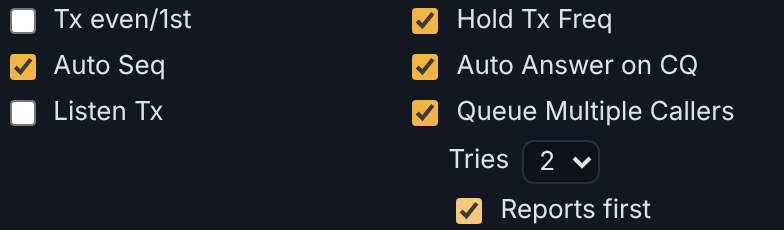
| What happens | |
|---|---|
| Several stations answer | The strongest is worked first, as Auto Answer on CQ does. The others wait in a queue, strongest first. Up to 3 wait at a time. |
| A QSO ends | When you've sent RR73 (or 73), the next station in the queue is answered with its signal report (Tx2), as if it had just called you. Its call, report and Rx frequency are filled in. |
| Stations who call later | A station that calls while you're working someone joins the end of the queue, if there's room, so the run keeps going for as long as stations keep calling. The queue is first come, first served: a later caller never jumps ahead of stations already waiting, however strong it is. If several new stations call in the same over, the strongest of them goes in first. When the queue is full, new callers aren't added; they're picked up if they call again once there's room. |
| Reports first | Optional. When several new stations call in the same over, those that call with a signal report (skipping their grid) go ahead of grid callers, whatever their strength — strongest first within each group. This applies to the first pick after a CQ too. Stations already waiting keep their place. |
| A station doesn't answer | The Tries (1–3) value determines how many responses will be sent in a row without an answer before moving on to the next station in the queue. If nobody is waiting, the client goes back to calling CQ. Only a reply that moves the QSO on counts as an answer: a station that just calls again with its grid or report hasn't copied you, so that over counts as a try. If a dropped station calls again with its grid or report, it isn't blacklisted: it's treated like any new caller and joins the end of the queue (if there's room), ordered by signal strength with the other new callers in that over. If it comes back with an R-report, RR73 or 73 (it copied you late), it goes to the front of the queue and its QSO is finished next, with the report you originally sent it. |
| Nobody is waiting | The client calls CQ, and the run stays on: a station that answers that CQ is worked next. |
| Stopping | Halt Tx stops the whole run. So does double-clicking a station yourself, or unticking Auto Answer on CQ or Queue Multiple Callers. Turning Enable Tx off (or the Tx watchdog doing it) only pauses the run: turn it on again and it carries on with the same queue. |
While a run is going, the QSO state line under the DX panel shows its progress, e.g. QSO KG9OH · EN52 · sent -18 · next Tx2 · caller 2 · queued W1AW, and the status bar shows each move (Next caller: KG9OH (caller 2), K1ABC did not answer after 2 tries — calling W1AW).
Example (Tries = 1): three stations answer one CQ, and the second one goes quiet.
| Your transmission | What happened |
|---|---|
CQ AK7MG DM09 | AA1AA, BB2BB and CC3CC answer |
AA1AA AK7MG -05 … RR73 | Strongest worked first; BB2BB and CC3CC queued |
BB2BB AK7MG -12 | Next in the queue: no answer in one over |
CC3CC AK7MG -15 … RR73 | BB2BB dropped; CC3CC worked |
CQ AK7MG DM09 | Nobody waiting: calling CQ again |
The Tx watchdog counts time since you last touched the controls, so it also pauses a long run (6 minutes by default): click Enable Tx to carry on. Raise it in Settings → Sequencing if you want longer unattended runs, and stay at the station: you're responsible for every transmission.
The message sequence#
| You called them | They called you (your CQ) |
|---|---|
You: K1ABC AK7MG CN87 (Tx1) | You: CQ AK7MG CN87 (Tx6) |
They: AK7MG K1ABC -05 | They: AK7MG K1ABC FN42 |
You: K1ABC AK7MG R+04 (Tx3) | You: K1ABC AK7MG +04 (Tx2) |
They: AK7MG K1ABC RR73 | They: AK7MG K1ABC R-05 |
You: K1ABC AK7MG 73 (Tx5) | You: K1ABC AK7MG RR73 (Tx4) |
| QSO complete, log it | They: AK7MG K1ABC 73 — log it |
Taking control by hand#
| You want to… | Do this |
|---|---|
| Repeat a message | Leave it selected; Auto Seq won't advance until the right reply arrives. |
| Jump to another message | Click its Next button (from the next period) or Now (immediately, even mid-transmission). |
| Work a different station | Double-click it, at any time. See Switching to another station. |
| Change a message | Edit the text box (up to 13 characters for free text). |
| Stop at once | Halt Tx or Esc (also ends a Queue Multiple Callers run). |
| Stop after this transmission | Click Enable Tx to turn it off. |
| Abandon the QSO | Clear DX. |
Tune and the watchdog#
- Tune transmits a steady carrier at your Tx frequency until you click it again. Use it to check power and ALC: the ALC meter in the top bar shows the radio's ALC while tuning. Keep it short.
- During a QSO, keep an eye on the ALC meter while you transmit. If it turns amber or red, lower Tx level with the mouse wheel; the change applies straight away.
- The Tx watchdog (6 minutes by default) turns Enable Tx off if you haven't touched the controls for that long, with a message on screen. Click Enable Tx to carry on.
Pop out#
On a computer, Pop out moves FT8 into its own window, always on top in Chrome and Edge. You can then use the Radio tab, or another program, while FT8 keeps running. Monitoring and any QSO in progress continue without a break. Dock, or closing the window, puts it back in the tab.
Keep FT8 visible while transmitting. Browsers slow down timers in tabs that are hidden, which can make transmissions start late or be cut short.